

Upgrade Guide
Upgrade a self-hosted SovEcom stack in five steps: take a backup, pull the new images, apply database migrations, verify the store works, and restore if it does not. SovEcom migrations move forward only. No automated rollback exists, so the backup you take before the upgrade is your only path back to the prior state. Take it every time.
How SovEcom versions and migrates
Section titled “How SovEcom versions and migrates”SovEcom runs as a set of Docker images defined in docker-compose.yml: api, admin, setup, storefront, plus postgres, redis, meilisearch, and caddy. You upgrade by replacing the application images and re-running database migrations against the same pgdata volume.
Versioned SQL files under apps/api/src/database/migrations hold the schema, numbered 0000_*.sql through the current head. Drizzle Kit tracks which files have run in the __drizzle_migrations table and a journal at migrations/meta/_journal.json. When you run the migrate command, Drizzle applies only the files that have not run yet, in order. Running it twice is safe. The second run finds nothing to apply.
The migrate command is:
pnpm --filter @sovecom/api migrate:upThat maps to drizzle-kit migrate, which reads DATABASE_URL and applies pending files from apps/api/src/database/migrations.
Some migrations are hand-written and irreversible
Section titled “Some migrations are hand-written and irreversible”Some migration files are hand-written, because Drizzle’s generator cannot emit triggers, partial unique indexes, or immutability guards. Take 0010_invoice_immutability.sql: it installs a database trigger that forbids DELETE on any invoice row and blocks every UPDATE except the one-time attach of the rendered-PDF pointer. These enforce fiscal retention. You cannot reverse them with a down migration. To get back across such a migration, you restore the full database from your pre-upgrade dump.
Minor versus major upgrades
Section titled “Minor versus major upgrades”| Upgrade type | What changes | Migration risk | Extra care |
|---|---|---|---|
| Minor / patch | App image tags, dependency bumps, bug fixes, additive columns | Low. Usually additive, backward-compatible schema | Backup, pull, migrate, verify |
| Major | Breaking schema changes, base-image jumps (Postgres line, Node line), removed fields | Higher. May rewrite or drop data | Read the release notes in full. Test the dump restore on a staging copy first. Plan a maintenance window |
Both follow the same five steps below. A major upgrade adds two rules. Read the release notes for that version before you start, and rehearse the upgrade against a copy of production before you touch the live store.
Before you start
Section titled “Before you start”- Pick a low-traffic window. Customers will see errors while the API restarts and migrations run.
- Confirm your
.envstill hasPOSTGRES_PASSWORDandMEILI_MASTER_KEYset. Compose fails fast if either is missing. - Have enough free disk for a full database dump plus the new images.
- Read the release notes for the version you are moving to, especially for a major upgrade.
Step 1. Back up the database
Section titled “Step 1. Back up the database”Take a logical dump of the running Postgres container before you change anything. The database user and name are both sovecom (see docker-compose.yml).
# From the directory holding docker-compose.ymldocker compose exec -T postgres \ pg_dump -U sovecom -d sovecom --clean --if-exists \ > "sovecom-backup-$(date +%Y%m%d-%H%M%S).sql"--clean --if-exists tells the dump to drop and recreate objects on restore, so you can replay it onto a database that already holds the old schema.
Verify the dump is non-empty and ends cleanly before you continue:
tail -n 5 sovecom-backup-*.sql # should show PostgreSQL dump completels -lh sovecom-backup-*.sql # size should be plausible, not a few bytesBack up your .env and your docker/Caddyfile at the same time. They are not in the database, and a clean recovery needs them.
Step 2. Pull the new images
Section titled “Step 2. Pull the new images”Check out the new release (or update your docker-compose.yml image tags), then pull. The compose file builds api, admin, setup, and storefront from local Dockerfiles and pulls postgres, redis, meilisearch, and caddy from registries.
git fetch --tagsgit checkout vX.Y.Z          # the release tag you are upgrading to
docker compose pull          # pulls postgres/redis/meilisearch/caddydocker compose build api admin setup storefront   # rebuilds local images
Do not start the new containers yet. Migrations run before the new API serves traffic.
Step 3. Run migrations
Section titled “Step 3. Run migrations”Stop the API so no old code writes while the schema changes, keep Postgres up, then apply pending migrations.
docker compose stop api admin storefront # keep postgres + redis runningRun migrate:up against the live database. The cleanest way is a one-off container built from the new code, with DATABASE_URL pointed at the postgres service:
docker compose run --rm \ -e DATABASE_URL="postgres://sovecom:${POSTGRES_PASSWORD}@postgres:5432/sovecom" \ api pnpm --filter @sovecom/api migrate:upDrizzle prints each file it applies. If the database is already current, it applies nothing and exits zero. That is expected when you re-run after a partial failure.
Step 4. Start the stack and verify
Section titled “Step 4. Start the stack and verify”Bring everything up on the new images.
docker compose up -ddocker compose ps # every service should be running / healthyRun these checks before you call the upgrade done:
-
API health. Confirm the
apicontainer is up and not crash-looping:docker compose logs --tail=50 api. Look for a clean Nest boot, no migration or schema errors. -
Admin loads. Open the admin URL and sign in. The dashboard should render against live data.
-
Storefront renders. Open the storefront, load a category and a product page. Prices show in integer cents formatted to the store currency.
-
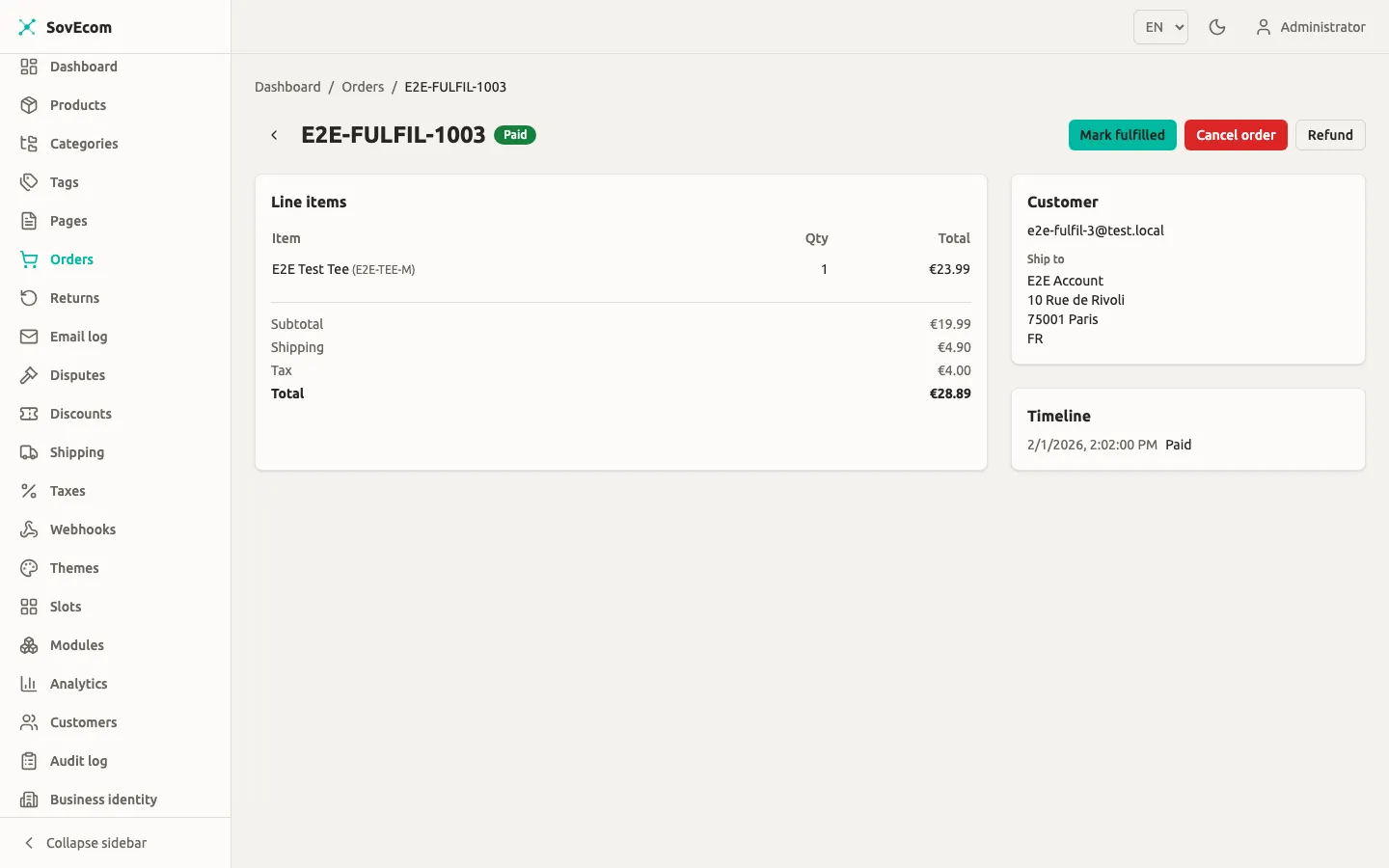
Place a test order end to end if the upgrade touched cart, checkout, payments, tax, or invoicing. Confirm the order appears in Admin → Orders, an invoice is issued with the next gapless number, and tax lines match what you expect. See Orders and Payments.
-
Search works. If the release changed indexed fields, reindex Meilisearch:
Terminal window docker compose exec api pnpm --filter @sovecom/api reindex
If every check passes, keep the pre-upgrade dump until the store has run clean for a few days, then archive it.
Restore from backup
Section titled “Restore from backup”Use this when a migration corrupted data, the new API will not boot, or verification fails and you need the store back now.
Restore from the logical dump
Section titled “Restore from the logical dump”Stop the application containers, keep Postgres running, and replay the dump you took in Step 1.
docker compose stop api admin storefront setup
# Replay the dump into the running postgres containerdocker compose exec -T postgres \  psql -U sovecom -d sovecom < sovecom-backup-YYYYMMDD-HHMMSS.sql
Because the dump was taken with --clean --if-exists, it drops and recreates objects, returning the schema and data to the pre-upgrade state. After it finishes, check out the previous release tag, rebuild the old application images, and bring the stack back up:
git checkout vX.Y.W # the version you were on beforedocker compose build api admin setup storefrontdocker compose up -dVerify with the same checks from Step 4. The store is now running the prior version against the prior schema.
Restore from a volume snapshot
Section titled “Restore from a volume snapshot”If you took a pgdata tarball (recommended for major upgrades) and the logical replay does not come up clean, restore the raw volume instead. This overwrites the entire database directory, so use it only when you intend to discard the current pgdata.
docker compose down                          # stop everything, keep volumesdocker volume rm sovecom_pgdata              # remove the broken volumedocker volume create sovecom_pgdata          # recreate it empty
docker run --rm \  -v sovecom_pgdata:/data -v "$PWD":/backup alpine \  sh -c "cd /data && tar xzf /backup/pgdata-YYYYMMDD-HHMMSS.tar.gz"
git checkout vX.Y.Wdocker compose build api admin setup storefrontdocker compose up -dAfter a successful upgrade
Section titled “After a successful upgrade”- Confirm gapless invoice numbering still advances by one on the next real order. The immutability trigger from
0010_invoice_immutability.sqlrejects any after-the-fact edit, so you cannot patch a wrong number in place. You correct it with a credit note. - Re-check VAT and OSS behaviour if the release touched tax. See Tax.
- Watch the API logs through the next business day for slow queries or errors that a new migration’s indexes surface.
Quick reference
Section titled “Quick reference”| Step | Command |
|---|---|
| Back up (logical) | docker compose exec -T postgres pg_dump -U sovecom -d sovecom --clean --if-exists > backup.sql |
| Pull / build | docker compose pull && docker compose build api admin setup storefront |
| Stop app tier | docker compose stop api admin storefront |
| Migrate | docker compose run --rm api pnpm --filter @sovecom/api migrate:up |
| Start | docker compose up -d |
| Reindex search | docker compose exec api pnpm --filter @sovecom/api reindex |
| Restore (logical) | docker compose exec -T postgres psql -U sovecom -d sovecom < backup.sql |
Related guides: Getting Started, Orders, Payments, Tax.