

Email Configuration & Deliverability
This guide covers outbound email for a self-hosted SovEcom store: which provider sends your mail, the transactional emails the API sends on its own, the DNS records that keep those emails out of spam, and what to do about bounces and complaints. Where a screen is not captured yet, you will see a screenshot placeholder.
For the orders that trigger these emails, see Order Management. For customer accounts and the addresses mail is sent to, see Customers.
How SovEcom sends mail
Section titled “How SovEcom sends mail”The API picks one mail transport at boot, from environment variables, in a fixed order of preference:
- Brevo HTTP API when
BREVO_API_KEYis set. This is the default and recommended path. - Custom SMTP (nodemailer) when
SMTP_HOSTis set and no Brevo key is present. - No-op when neither is configured. The app still boots, and every send is skipped with a redacted log line. Use this only in development.
You configure exactly one. If you set BREVO_API_KEY, the API picks Brevo even when SMTP_HOST is also present, so do not set both unless you want Brevo to take priority.
The sender address
Section titled “The sender address”Every email goes out from the value of MAIL_FROM. If you leave it unset, the API falls back to no-reply@sovecom.local, which no real mail server will accept and which fails SPF/DKIM. Always set MAIL_FROM to an address on a domain you control.
# An address on a domain you own and will configure DNS for.MAIL_FROM="SovEcom Store <no-reply@store.example.com>"The API parses the Name <email> form and passes the name and address through to the provider. A bare address (no-reply@store.example.com) also works.
Option A: Brevo (default)
Section titled “Option A: Brevo (default)”Brevo (formerly Sendinblue) is the recommended transport. The API calls Brevo’s transactional HTTP endpoint (POST https://api.brevo.com/v3/smtp/email) with your API key in the api-key header.
- Create a Brevo account and verify it.
- In Brevo, go to SMTP & API → API Keys and create a new key.
- Add the sending domain (the domain in your
MAIL_FROM) under Senders, Domains & Dedicated IPs → Domains and complete Brevo’s domain authentication. Brevo gives you the DKIM and SPF records to publish (see DNS authentication below). - Set the environment variables on the API and restart:
BREVO_API_KEY="xkeysib-…"MAIL_FROM="SovEcom Store <no-reply@store.example.com>"- Confirm the boot log shows
mail transport: brevo.
Option B: Custom SMTP
Section titled “Option B: Custom SMTP”Use any SMTP relay (your own Postfix, Amazon SES SMTP, Mailgun SMTP, a managed provider) by setting the SMTP_* variables and leaving BREVO_API_KEY unset.
Variables
Section titled “Variables”| Variable | Required | Default | Notes |
|---|---|---|---|
SMTP_HOST | Yes | — | Presence of this selects the SMTP transport. |
SMTP_PORT | No | 587 | Port 465 switches the connection to implicit TLS (secure). Any other port uses STARTTLS. |
SMTP_USER | No | — | Username for auth. Must be set together with SMTP_PASS. |
SMTP_PASS | No | — | Password for auth. Both must be present to enable auth; otherwise the relay connects unauthenticated (for IP-allowlisted relays). |
SMTP_HOST="email-smtp.eu-west-1.amazonaws.com"SMTP_PORT="587"SMTP_USER="AKIA…"SMTP_PASS="…"MAIL_FROM="SovEcom Store <no-reply@store.example.com>"Restart the API and confirm the boot log shows mail transport: smtp.
Transactional emails the API sends
Section titled “Transactional emails the API sends”The API sends these emails on its own, off domain events that fire after the relevant database transaction commits. You do not send them from the admin.
| Trigger | Recipient | Contents | |
|---|---|---|---|
| Order confirmation | order.created (order placed) | The order’s email address | Order number, line items, totals, ship-to address |
| Shipment notice | Order moves to shipped | The order’s email address | Shipment notice for the order |
| Refund issued | A refund is recorded (refund.issued) | The order’s email address | Refund amount and currency, credit-note number when present |
| Password reset (admin) | Admin password-reset request | The staff address | Reset link, expires in 1 hour. English only. |
| Password reset (customer) | Storefront password-reset request | The customer address | Localized reset link to the storefront |
| Email-change verification | Customer requests an email change | The new (pending) address | Single-use verification link |
| Email-change notice | Customer requests/confirms an email change | The current (old) address | Security notice, no link |
Templates and rendering
Section titled “Templates and rendering”Templates are HTML-string functions built into the API. They use inline styles only, with no external CSS, images, web fonts, or tracking pixels, so the email renders the same offline and leaks nothing about the recipient. Money runs through the minor-units-aware formatter, so a JPY total (zero decimals) or a KWD total (three) renders correctly instead of a flat divide by 100.
Order and refund emails render in the customer’s stored language. The composer reads customers.locale and resolves it to a supported locale; English (en) and French (fr) are supported, and anything unrecognized or missing (including guest orders) falls back to English. This resolution never blocks a send: if the locale cannot be read, the email goes out in English.
The email log
Section titled “The email log”The API records one row per send in an email_logs table for the order-related emails (order confirmation, shipment notice, refund issued). One send writes one row with its final outcome after the retry loop finishes, and the attempts count tells you how many tries it took. Each row holds the outcome, never the body: recipient, type, subject, status (sent or failed), attempt count, a sanitized error, the provider’s message id, and timestamps. There is no body column; a resend re-renders from the source order.
Viewing the log (API)
Section titled “Viewing the log (API)”The admin endpoints are live; an admin UI screen for the email log is planned for a future release.
GET /admin/v1/emails?status=failed&type=order_confirmation&orderId=<uuid>&page=1&pageSize=20Query parameters:
| Parameter | Values | Notes |
|---|---|---|
status | sent, failed | Filter by outcome. |
type | order_confirmation, order_shipped, refund_issued | Filter by email type. |
orderId | UUID | Show only emails for one order. |
page | integer ≥ 1 | Default 1. |
pageSize | 1–200 | Default 20. |
Listing requires the orders:read permission. The log is tenant-scoped; you only ever see your own store’s rows.
The Email log screen (open Email log in the sidebar) lists every transactional email — recipient, type, subject, status, attempts, and when it was sent. Filter by status to find failed sends, and resend a failed message in place.
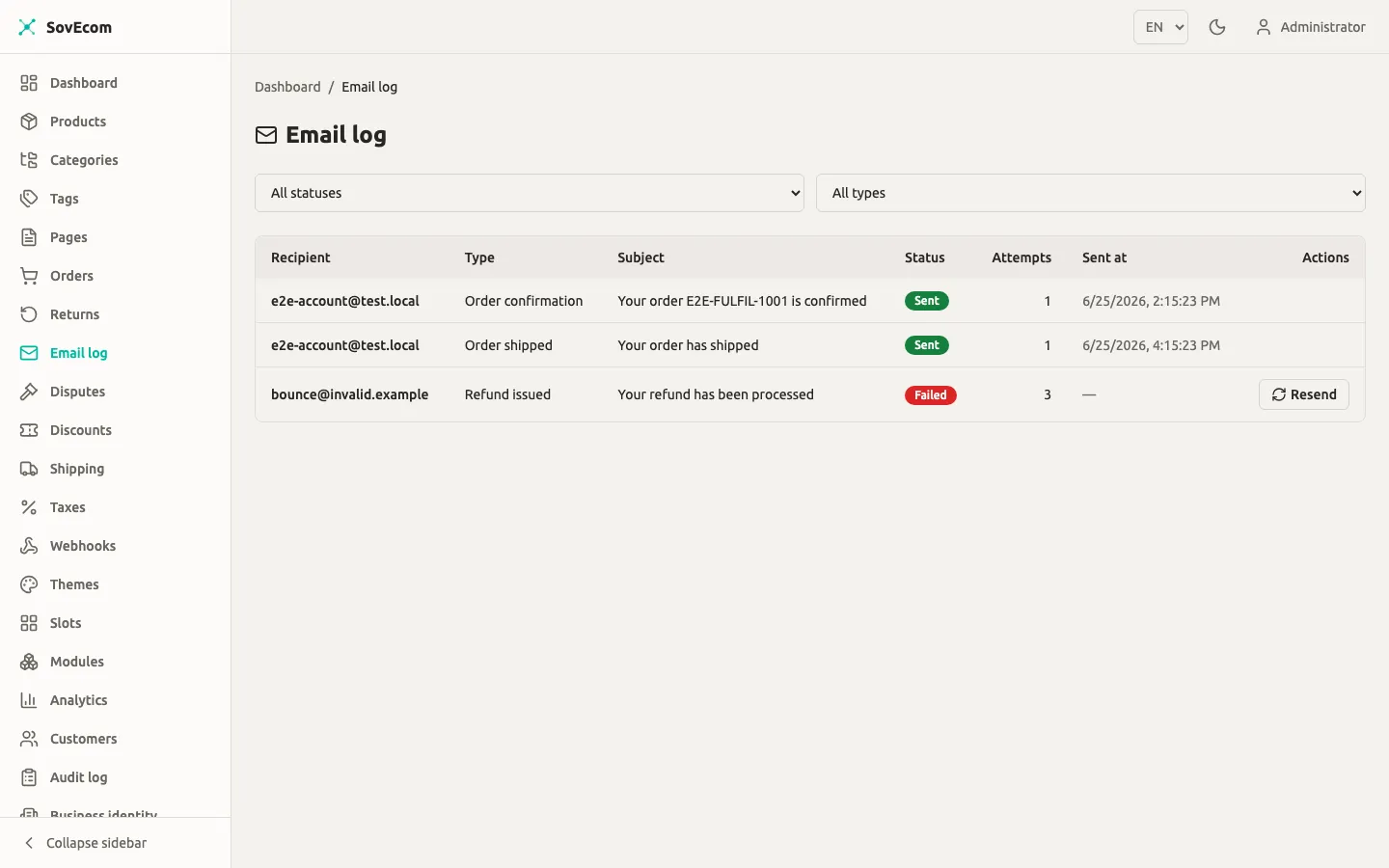
The same data is available over the API (GET /admin/v1/emails, POST /admin/v1/emails/:id/resend).
Resending a failed email
Section titled “Resending a failed email”POST /admin/v1/emails/{id}/resendThis re-loads the source order, re-renders the template from order_id + type + reference_id, sends again, and writes a fresh log row (the original row is left intact as an audit trail). Resend requires the orders:write permission and is audit-logged as email.resent.
Two cases return an error instead of resending:
- The log row has no source order. Returns
422 Unprocessable Entity. - The source order data is no longer available. Returns
422 Unprocessable Entity.
Retry behavior
Section titled “Retry behavior”Each send tries up to 3 times with exponential backoff before it gives up and records a failed row. The backoff base is EMAIL_RETRY_BASE_MS (default 200), giving waits of about 200ms then 400ms. The retry runs in-process, inside the send call; there is no durable queue. When all three attempts fail, the failed row is your signal to investigate and resend.
DNS authentication (SPF, DKIM, DMARC)
Section titled “DNS authentication (SPF, DKIM, DMARC)”SPF, DKIM, and DMARC are DNS records you publish for your sending domain. SovEcom does not manage these; you set them at your DNS host. Without them, Gmail, Outlook, and most mailbox providers send your order confirmations straight to spam or reject them.
Publish all three for the domain in your MAIL_FROM.
An SPF record lists which servers may send mail for your domain. Publish a single TXT record at the domain apex naming your provider.
For Brevo:
store.example.com. TXT "v=spf1 include:spf.brevo.com -all"For a custom SMTP relay, use that provider’s include (for example include:amazonses.com for Amazon SES). Keep only one SPF record per domain; merge includes into it rather than adding a second v=spf1 record. End with -all (hard fail) once you are confident every legitimate sender is listed.
DKIM adds a private-key signature to each message, so the receiver can verify it was not altered and came from your domain. Your provider generates the key pair and gives you the public key as a TXT (or CNAME) record to publish.
In Brevo, the records appear under Senders, Domains & Dedicated IPs → Domains after you add the domain. Brevo typically gives you two CNAME records (brevo1._domainkey, brevo2._domainkey) to publish:
brevo1._domainkey.store.example.com. CNAME b1.example-host.brevo.com.brevo2._domainkey.store.example.com. CNAME b2.example-host.brevo.com.Use the exact host values Brevo shows you; the example above is illustrative. For SES or another relay, follow that provider’s DKIM instructions.
A DMARC record sets the policy receivers apply when SPF or DKIM fails, plus the address for aggregate reports. Start in monitor mode (p=none) so you can read reports without affecting delivery, then tighten to quarantine and finally reject.
_dmarc.store.example.com. TXT "v=DMARC1; p=none; rua=mailto:dmarc@store.example.com; fo=1"Once your reports show SPF and DKIM passing on all legitimate mail, move p=none to p=quarantine, then p=reject.
Verify
Section titled “Verify”After publishing, confirm the records resolve:
dig +short TXT store.example.com # SPFdig +short TXT _dmarc.store.example.com # DMARCdig +short CNAME brevo1._domainkey.store.example.com # DKIM (Brevo CNAME form)Send a test order to a Gmail address, open the message, and use Show original to confirm SPF: PASS, DKIM: PASS, and DMARC: PASS.
Bounce and complaint handling
Section titled “Bounce and complaint handling”A bounce is mail a server rejected (bad address, full mailbox, blocked sender). A complaint is a recipient marking your mail as spam. Both hurt your sender reputation, and a high rate gets your domain throttled or blocked.
What SovEcom does today
Section titled “What SovEcom does today”For a synchronous rejection (the receiving server refuses the message during the send), the API records a failed row in the email log after its three attempts, with a sanitized, address-free error. You see these by filtering the log to status=failed.
Recommended workflow
Section titled “Recommended workflow”- Monitor in Brevo. Watch the Statistics → Transactional and the bounce/complaint reports in your Brevo dashboard. Set up Brevo’s own alerts for spikes.
- Suppress at the provider. Brevo maintains its own suppression list and stops sending to hard-bounced and complained addresses. Let it; do not work around it.
- Fix bad addresses at the source. A persistent bounce usually means a customer typo. Correct the customer’s email under Customers and, if needed, resend the affected email via
POST /admin/v1/emails/{id}/resend. - Keep complaint rate low. Only send the transactional mail SovEcom sends by default. Do not repurpose the transactional sender for marketing; that is what drives complaints and gets the domain blocked.
Privacy and data retention notes
Section titled “Privacy and data retention notes”- No tracking. SovEcom adds no open or click tracking. You must disable provider-level tracking too (see the Brevo caution above).
- No body at rest. The email log stores the outcome and subject line, never the message body. A resend re-renders from the source order.
- Recipient is personal data. The log keeps the recipient address (
email_logs.recipient). RGPD erasure today scrubs orders and customers; the email-log recipient column is not yet scrubbed by that flow. If you run an erasure request, know that the erase flow does not yet scrubemail_logs.recipient.
For the broader data-retention and erasure model, see Customers.